Ta treść nie jest jeszcze dostępna w Twoim języku.
Besides, the rich features for building web applications, Yii also has full-featured support for console applications
which are mainly used to create background and maintenance tasks that need to be performed for a website.
The structure of console applications is very similar to a Yii web application. It consists of one
or more [[yii\console\Controller]] classes, which are often referred to as commands in the console environment.
Each controller can also have one or more actions, just like web controllers.
Both project templates already have a console application with them.
You can run it by calling the yii script, which is located in the base directory of the repository.
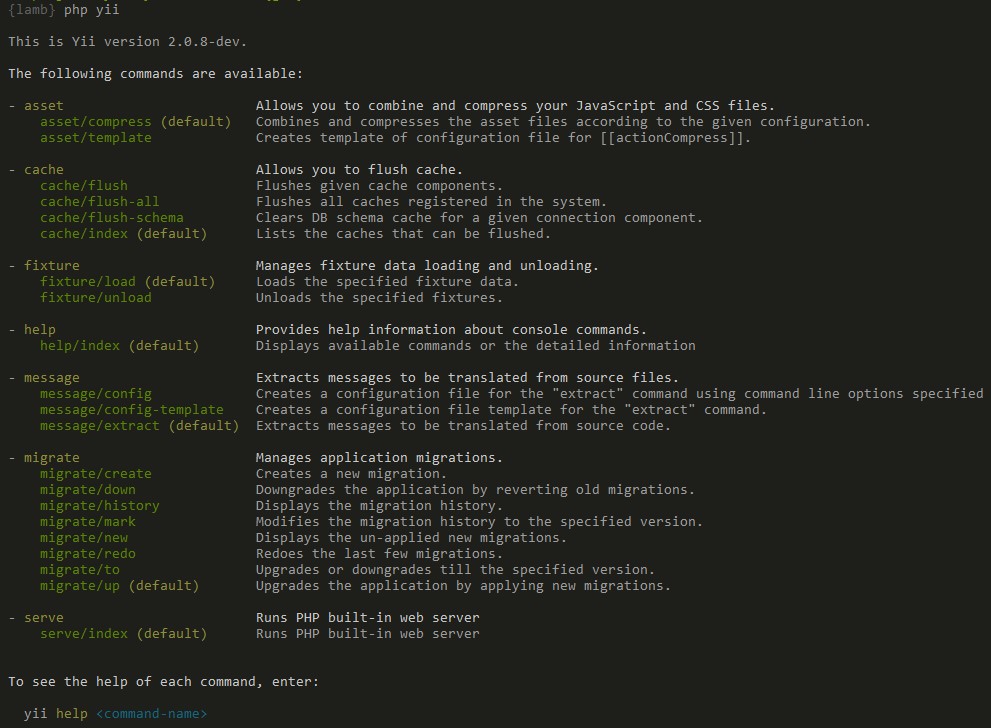
This will give you a list of available commands when you run it without any further parameters:
As you can see in the screenshot, Yii has already defined a set of commands that are available by default:
[[yii\console\controllers\AssetController|AssetController]] - Allows you to combine and compress your JavaScript and CSS files.
You can learn more about this command in the Assets Section.
[[yii\console\controllers\CacheController|CacheController]] - Allows you to flush application caches.
[[yii\console\controllers\FixtureController|FixtureController]] - Manages fixture data loading and unloading for testing purposes.
This command is described in more detail in the Testing Section about Fixtures.
[[yii\console\controllers\HelpController|HelpController]] - Provides help information about console commands, this is the default command
and prints what you have seen in the above output.
[[yii\console\controllers\MessageController|MessageController]] - Extracts messages to be translated from source files.
To learn more about this command, please refer to the I18N Section.
[[yii\console\controllers\MigrateController|MigrateController]] - Manages application migrations.
Database migrations are described in more detail in the Database Migration Section.
[[yii\console\controllers\ServeController|ServeController]] - Allows you run PHP built-in web server.
In the above, <route> refers to the route to the controller action. The options will populate the class
properties and arguments are the parameters of the action method.
For example, the [[yii\console\controllers\MigrateController::actionUp()|MigrateController::actionUp()]]
with [[yii\console\controllers\MigrateController::$migrationTable|MigrateController::$migrationTable]] set to migrations
and a limit of 5 migrations can be called like so:
yii migrate/up 5 --migrationTable=migrations
Note: When using * in console, don’t forget to quote it as "*" in order to avoid executing it as a shell
glob that will be replaced by all file names of the current directory.
The console application entry script is equivalent to the index.php bootstrap file used for the web application.
The console entry script is typically called yii, and located in your application’s root directory.
It contains code like the following:
This script will be created as part of your application; you’re free to edit it to suit your needs. The YII_DEBUG constant can be set to false if you do
not want to see a stack trace on error, and/or if you want to improve the overall performance. In both basic and advanced application
templates, the console application entry script has debugging enabled by default to provide a more developer-friendly environment.
As can be seen in the code above, the console application uses its own configuration file, named console.php. In this file
you should configure various application components and properties for the console application in particular.
If your web application and console application share a lot of configuration parameters and values, you may consider moving the common
parts into a separate file, and including this file in both of the application configurations (web and console).
You can see an example of this in the advanced project template.
Tip: Sometimes, you may want to run a console command using an application configuration that is different
from the one specified in the entry script. For example, you may want to use the yii migrate command to
upgrade your test databases, which are configured in each individual test suite. To change the configuration
dynamically, simply specify a custom application configuration
file via the appconfig option when executing the command:
Auto-completion of command arguments is a useful thing when working with the shell.
Since version 2.0.11, the ./yii command provides auto-completion for the Bash and ZSH out of the box.
For temporary usage you can put the file into the current directory and include it in the current session via source yii.
If globally installed you may need to restart the terminal or source ~/.bashrc to activate it.
Check the Bash Manual for
other ways of including completion script to your environment.
A console command is defined as a controller class extending from [[yii\console\Controller]]. In the controller class,
you define one or more actions that correspond to sub-commands of the controller. Within each action, you write code that implements the appropriate tasks for that particular sub-command.
When running a command, you need to specify the route to the controller action. For example,
the route migrate/create invokes the sub-command that corresponds to the
[[yii\console\controllers\MigrateController::actionCreate()|MigrateController::actionCreate()]] action method.
If a route offered during execution does not contain an action ID, the default action will be executed (as with a web controller).
By overriding the [[yii\console\Controller::options()]] method, you can specify options that are available
to a console command (controller/actionID). The method should return a list of the controller class’s public properties.
When running a command, you may specify the value of an option using the syntax --optionName=optionValue.
This will assign optionValue to the optionName property of the controller class.
If the default value of an option is of an array type and you set this option while running the command,
the option value will be converted into an array by splitting the input string on any commas.
Besides options, a command can also receive arguments. The arguments will be passed as the parameters to the action
method corresponding to the requested sub-command. The first argument corresponds to the first parameter, the second
corresponds to the second, and so on. If not enough arguments are provided when the command is called, the corresponding parameters
will take the declared default values, if defined. If no default value is set, and no value is provided at runtime, the command will exit with an error.
You may use the array type hint to indicate that an argument should be treated as an array. The array will be generated
by splitting the input string on commas.
The following example shows how to declare arguments:
Using exit codes is a best practice for console application development. Conventionally, a command returns 0 to indicate that
everything is OK. If the command returns a number greater than zero, that’s considered to be indicative of an error. The number returned will be the error
code, potentially usable to find out details about the error.
For example 1 could stand generally for an unknown error and all codes above would be reserved for specific cases: input errors, missing files, and so forth.
To have your console command return an exit code, simply return an integer in the controller action
method:
publicfunctionactionIndex()
{
if (/* some problem */) {
echo"A problem occurred!\n";
return1;
}
// do something
return0;
}
There are some predefined constants you can use. These are defined in the [[yii\console\ExitCode]] class:
publicfunctionactionIndex()
{
if (/* some problem */) {
echo"A problem occurred!\n";
returnExitCode::UNSPECIFIED_ERROR;
}
// do something
returnExitCode::OK;
}
It’s a good practice to define meaningful constants for your controller in case you have more specific error code types.