FilePond
این محتوا هنوز به زبان شما در دسترس نیست.
FilePond file uploads for Yii2 forms
Cropper.js image editing, previews, client and server validation, no jQuery
File uploads with image previews, a Cropper.js editor, and server-side validation and storage helpers. The widget initializes FilePond without jQuery and loads only enabled plugin assets.
Features
Section titled “Features”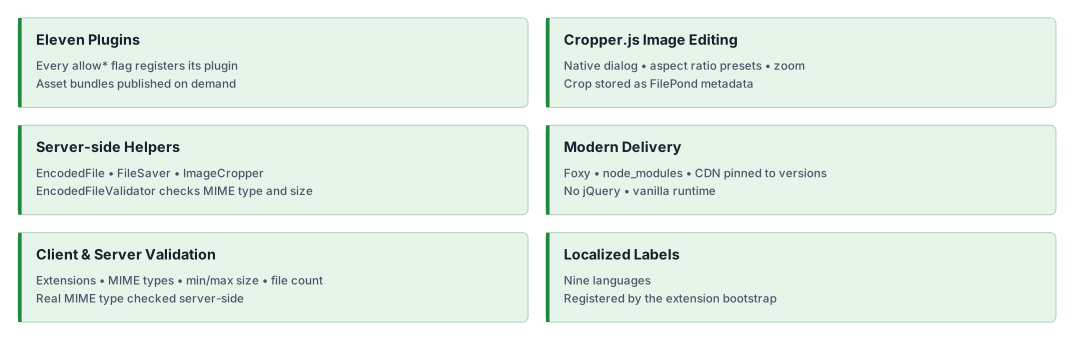
Quick start
Section titled “Quick start”Installation
Section titled “Installation”Requires the fileinfo extension. Foxy 0.4’s native manager installs the frontend assets without Node.js or npm;
it requires PHP zlib and Composer 2.10.2+.
Set the manager in the application’s root composer.json before installing:
{ "config": { "foxy": { "manager": "native" } }}composer config allow-plugins.php-forge/foxy truecomposer require php-forge/foxy:^0.4 yii2-extensions/filepond:^0.2Foxy installs FilePond, its plugins, and Cropper.js in node_modules beside the application’s package.json.
Commit the generated foxy.lock with the application’s Composer files. Point Yii’s @npm alias at that directory;
@app/node_modules is correct only when the application basePath is the Composer project root. See
installation for alias configuration, existing npm projects, and asset delivery.
Basic usage
Section titled “Basic usage”Place this in a Yii view, select a raster image, and edit it with a fixed square selection:
use yii2\extensions\filepond\FilePond;
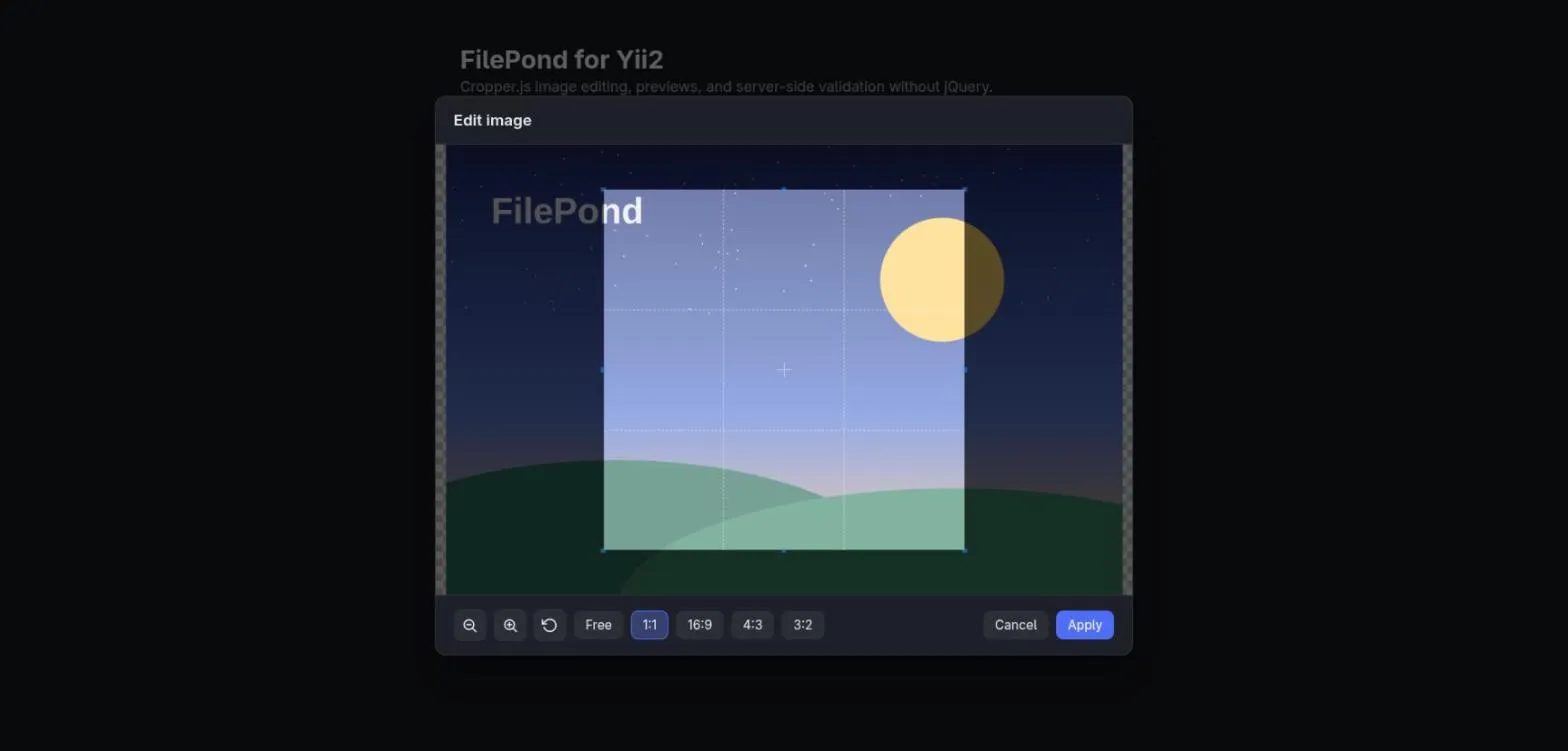
echo FilePond::widget(    [        'name' => 'avatar',        'acceptedFileTypes' => ['image/jpeg', 'image/png', 'image/webp'],        'allowImageEdit' => true,        'allowImageTransform' => true,        'imageCropAspectRatio' => '1:1',        'cropper' => ['aspectRatios' => ['1:1']],        'maxFileSize' => '2MB',        'config' => ['imageEditInstantEdit' => true],    ],);
The editor opens when an image is added and offers only the 1:1 ratio preset. Image Transform applies the
confirmed crop before form submission.
Previewing a crop alone does not change the uploaded bytes. To receive, validate, and store the image, follow the
complete upload workflow.
Documentation
Section titled “Documentation”Practical guides and runnable examples for uploads, plugins, and image editing.
- 📚 Installation Guide: native Composer setup, asset paths, translations, and assets.
- ⚙️ Configuration Guide: option precedence, plugins, and editor behavior.
- 💡 Usage Examples: runnable widgets and helper demonstrations.
- 🧪 Testing Guide: development checks.
- 📤 Upload Workflow: active form, server validation, cropping, and storage.
Server validation inspects decoded bytes rather than trusting the browser’s MIME type. List raster MIME types
explicitly when serving uploads from your origin: image/* also accepts SVG. Encoded uploads increase request
size; configure the application’s request limits as explained in the upload guide.
AI assistance
Section titled “AI assistance”AI agents: use the repository guides and source for the installed revision.
For a documentation deployment with
llms.txt, read that index first. When Markdown export is enabled, append
index.md to a page URL. For Yii conventions, use the yii2-framework skill
from a local framework documentation checkout.
- 🤖 yii2-filepond-uploads skill: installation for Claude Code, Codex, and OpenCode.
If the hosted sources are unavailable, use the repository guides and locally available skills.
Our social networks
Section titled “Our social networks”License
Section titled “License”Package
Section titled “Package”- Source code and issues: yii2-extensions/filepond. Star the repository if the package is useful to you.
- Composer package: yii2-extensions/filepond.
- Changelog: CHANGELOG.md.